01
Choose the bank, billing, and remittance files for the month.
Medical practices and billing teams
Reconciliator handles the payment-posting grind: linking insurance payments to your claims, chasing down denials, flagging claims paid less than your contract says, and checking patient coverage. Every finding links to its source records, and AI steps run through your practice’s own Azure OpenAI deployment.
$995 per seat each year. Azure OpenAI usage is billed separately through your own Microsoft account.
A 90-minute workflow discovery and coaching session is recommended for most teams.
Start here
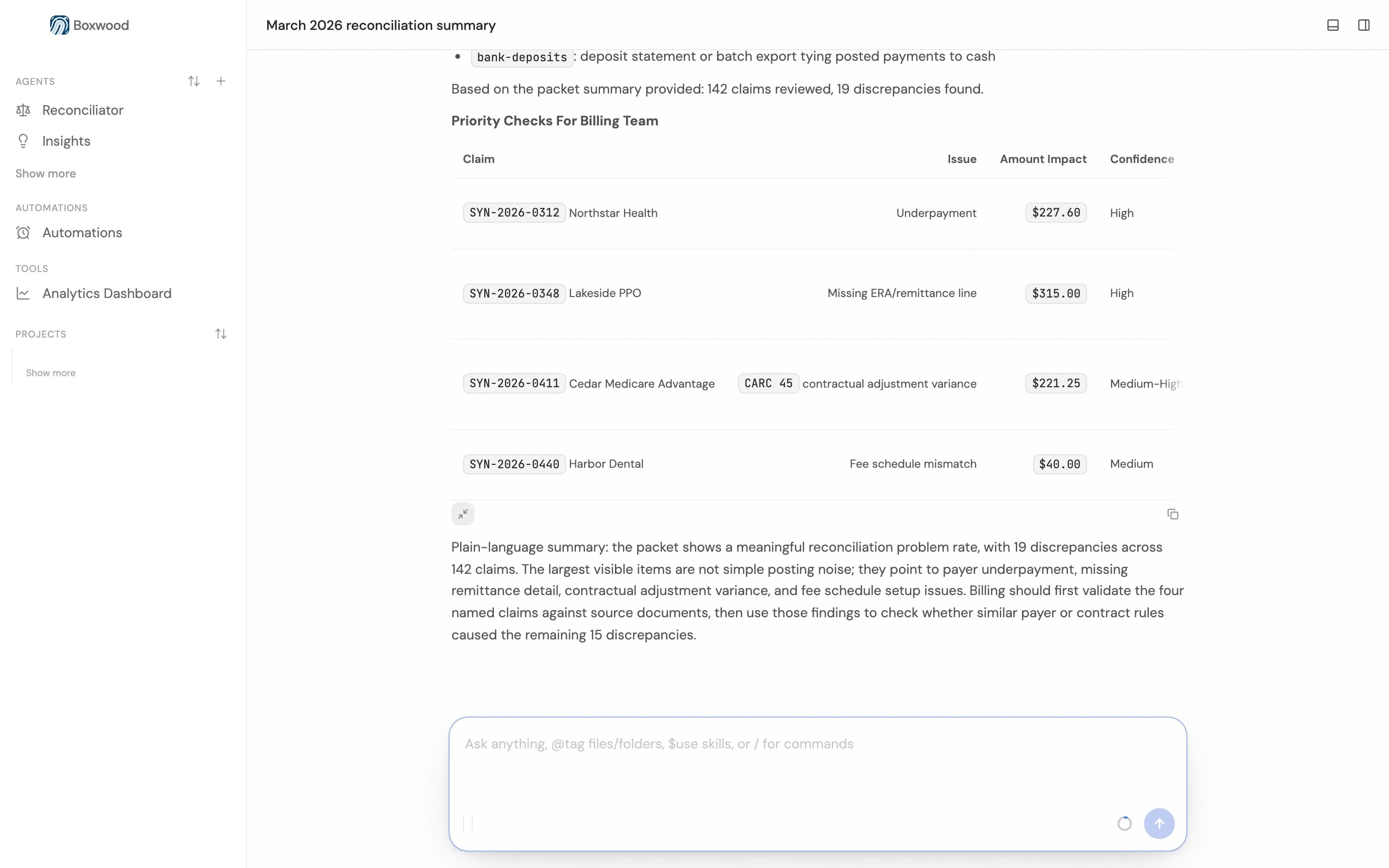
Compare insurance payment files, billing reports, and bank deposits, then show every mismatch next to the records behind it.
Choose the bank, billing, and remittance files for the month.
Match insurance payments to claims and flag what does not add up.
Give staff a short list of items to review, with the records behind each one.
Proof demo
Boxwood compares your insurance payment files, billing report, and bank deposits, then shows every mismatch next to the exact records behind it.
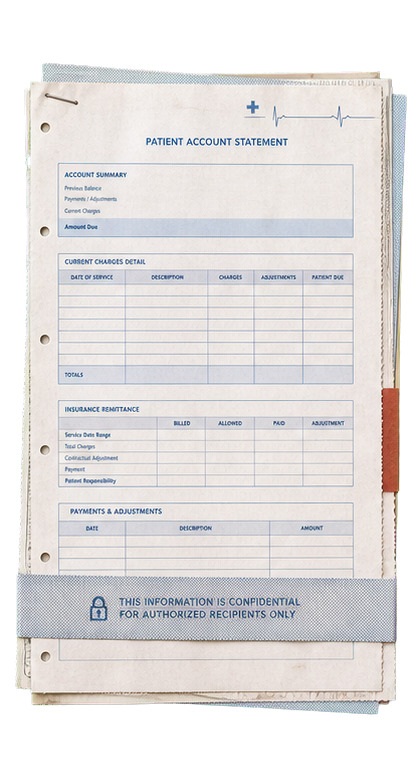
Medical billing reconciliation should already be automated. Comparing 835 files, practice exports, and bank deposits is repetitive. AI can do the comparison. The problem is the data. Patient records and payment details cannot be dropped into an ordinary AI tool. Legal and compliance say no. Boxwood turns no into yes. Reconciliator works from the billing records you choose. Source files, artifacts, and work history stay in the local workbench. When AI is needed, approved inference context goes through your organization's Azure OpenAI account. Use Reconciliator to compare remittance files, billing exports, and deposits. It flags mismatches and links each finding to its source, so you can inspect the evidence yourself. Billing work that ordinary AI could not be approved to handle can now be automated.
More than one workflow
Describe another job, choose the files and tools it can use, and run it. When the process works, save it so you or your team can use it again.
Match payment files, bank deposits, and practice records, then send staff straight to the exceptions.
Stage remittance files, exports, and supporting records with explicit review points.
Pull together the denial reason, supporting records, missing-document checklist, and deadline for staff review.
How the workflow moves
Choose the remittance files, billing report, and deposits. Boxwood flags what does not add up and shows the claim and payment behind each item.
Stage approved remittance files, practice exports, and deposits in the local workbench.
The AI sees only the information you choose for this job through your organization’s private Microsoft account.
The agent performs the repeatable comparison or review inside the workflow you defined.
The result returns to the workbench with the supporting records available to inspect.
Workflow coaching
Unless you already build agents yourself, the coaching is where much of the value comes from. We help you see which parts of the day can become repeatable Boxwood workflows.
Walk through how your team actually spends its day.
Find the repetitive work Boxwood can handle and your team can check.
Choose the best first workflow and set it up together.
For legal, IT, and compliance review
Boxwood keeps source files, results, and work history on your computer. When a task needs AI, it sends that task's content to the Azure OpenAI deployment your organization creates and controls. Microsoft bills you for it directly; Ironwood never needs your key.
How HIPAA compliance applies to an AI agent ->Source files, artifacts, credentials, and work history live in the local workbench on your machine.
When a step needs AI, its content goes to your organization's configured Azure OpenAI deployment. Not to a public chatbot, and not through our servers.
Results link to the file, row, or record they came from, so the person reviewing can open the evidence directly.
An agent can touch only the files and connectors you selected for that workflow.
Pilot inquiries
Research a case, review documents, compare records, update a spreadsheet, or build a reusable internal tool. We will run your example through Boxwood and show you the result, the source trail, and where the information went.